VDI Client User Guide
I. Overview
VDI Client is a VDI client based on Qt + FreeRDP.
II. Login
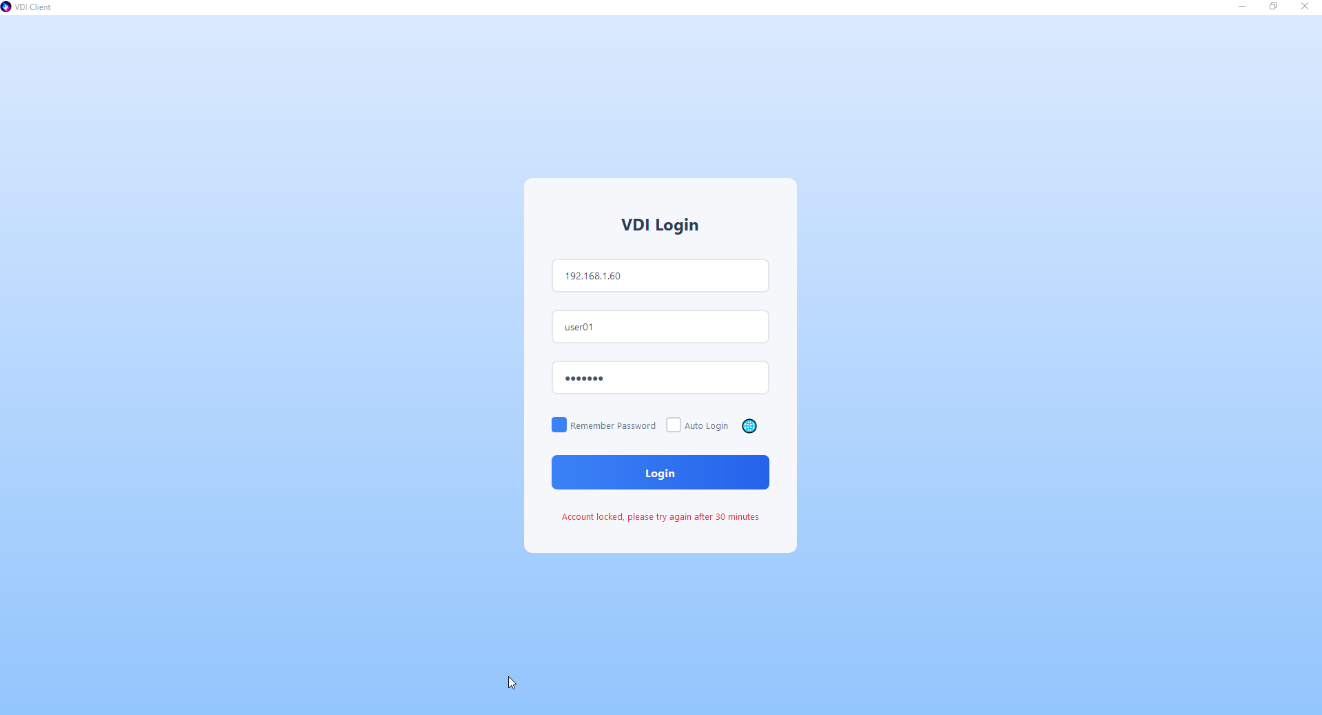
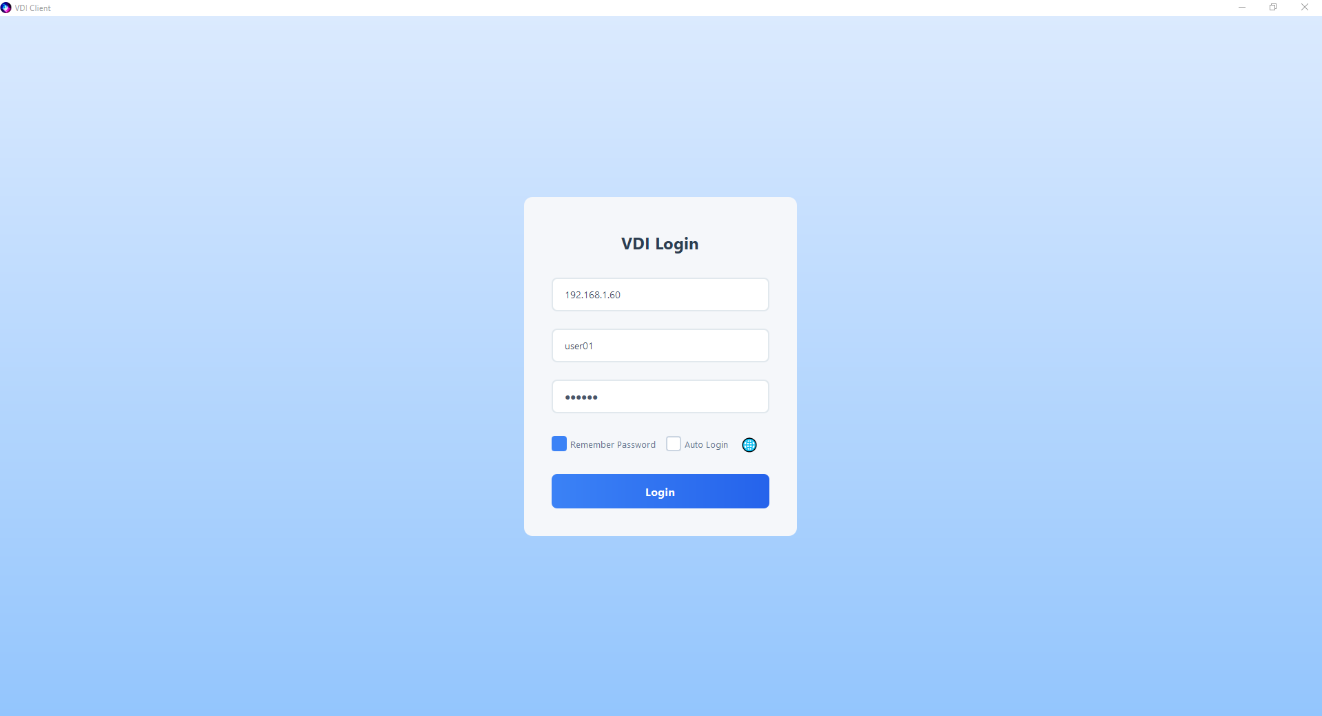
Enter the server IP, username and password, then click login. Supports English, Japanese, Chinese (Simplified), and Chinese (Traditional) languages.
III. Connect
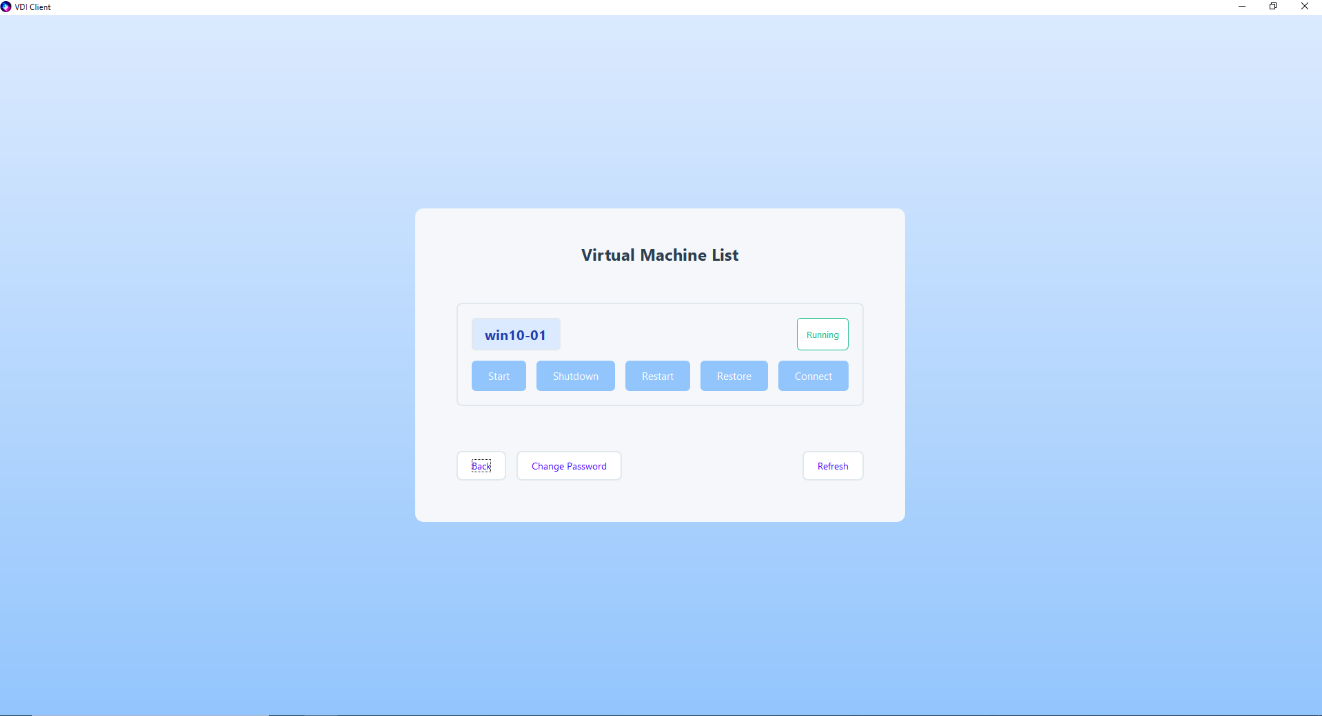
Click the Connect button to login to the virtual machine.
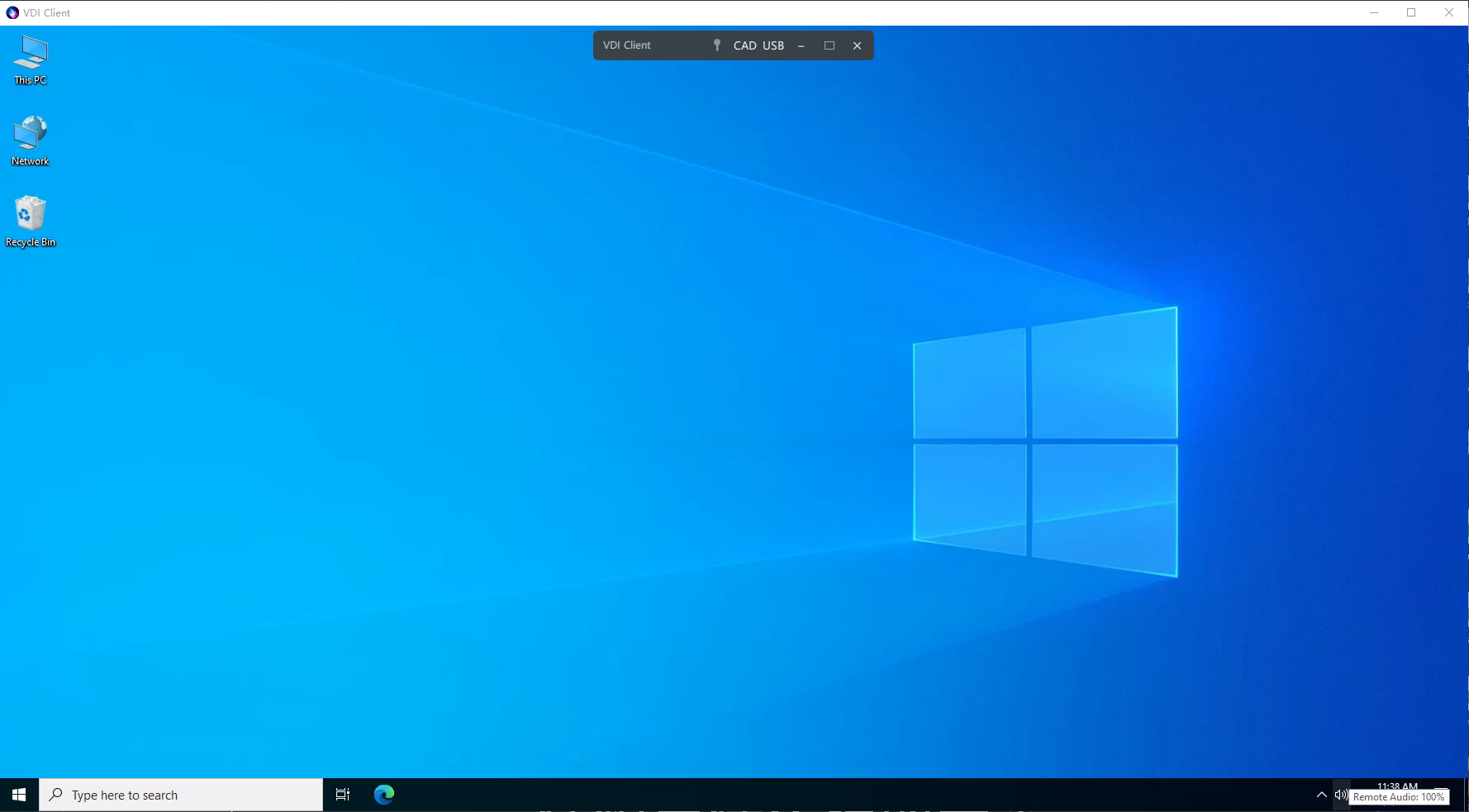
Moving the mouse to the top of the screen will display a floating toolbar, which supports the CAD (Ctrl+Alt+Del) shortcut, USB device redirection, and window mode.
IV. Change User Password
Click the Change Password button to modify your password.

V. Operate Virtual Machine
After clicking Power On, Shutdown, Restart, or Restore (only available in restore mode), use the Refresh button to update VM status. After VM power on or restart operations, users need to wait approximately 10-15 seconds before clicking Connect to enter the VM, otherwise connection failure will occur.
VI. User Lockout
Entering wrong password 5 times will result in user lockout. Please contact the administrator to unlock.